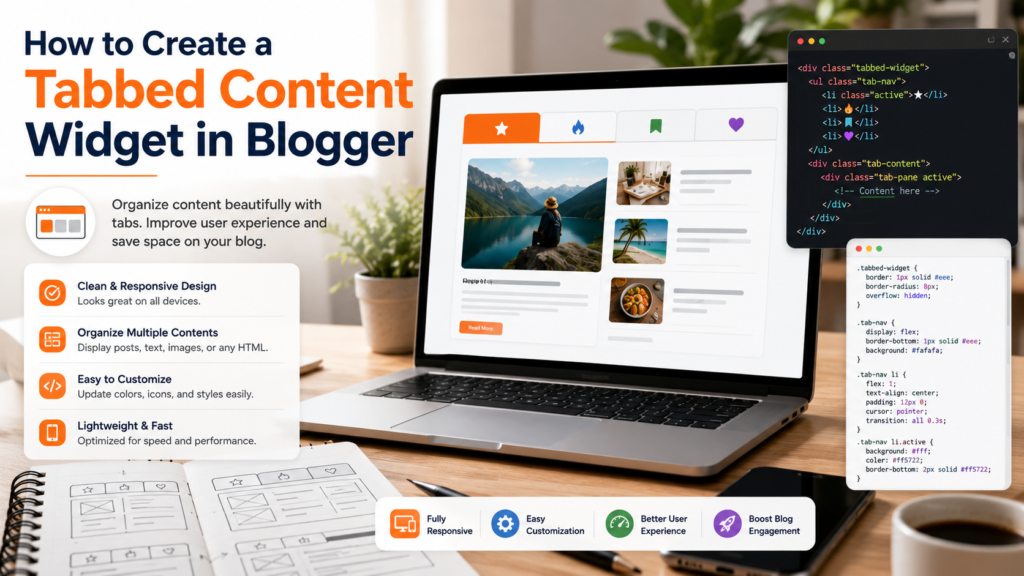
As blogs grow, presenting large amounts of information without overwhelming readers becomes increasingly important. A long sidebar filled with widgets, links, and content blocks can quickly become cluttered, especially on content-heavy Blogger websites.
One solution that has remained popular for years is the tabbed content widget.
Instead of displaying multiple content sections at once, a tabbed widget organizes information into separate tabs that readers can switch between. This creates a cleaner interface, improves organization, and allows more content to fit into a smaller space.
For Blogger users interested in customization, a tabbed content widget is one of the most effective ways to improve layout flexibility and create a more professional-looking website.
What Is a Tabbed Content Widget?
A tabbed content widget is an interface element that groups multiple content sections inside a single container.
Users can click different tabs to switch between content areas without leaving the page.
Common examples include:
- Recent Posts
- Popular Posts
- Featured Articles
- Categories
- Comments
- Resources
Instead of displaying all sections simultaneously, only one panel is visible at a time.
This creates a cleaner browsing experience and reduces visual clutter.
Why Use Tabbed Content in Blogger?
Many Blogger layouts have limited sidebar space.
Without proper organization, widgets can become difficult to navigate.
A tabbed content widget helps by:
- Saving screen space
- Organizing information logically
- Reducing visual clutter
- Improving user experience
- Highlighting important content
- Supporting responsive layouts
A cleaner layout can make a small blog feel professional without requiring a complete redesign.
Common Use Cases
Tabbed widgets work particularly well for:
Content Discovery
Display recent posts, featured articles, and popular content in separate tabs.
Resource Libraries
Organize tutorials, guides, and downloads.
Topic Navigation
Group related content into categories.
Sidebar Optimization
Reduce widget overload while preserving functionality.
Many modern blog widget tutorials recommend tabbed layouts because they improve organization without increasing page complexity.
Understanding the Structure
A tabbed widget consists of three main components:
Tab Navigation
The clickable buttons that allow users to switch content panels.
Content Panels
The individual content areas displayed when a tab is selected.
Interaction Logic
The mechanism that controls which panel appears when a tab is clicked.
Together, these elements create an interactive interface that improves content presentation.
Planning Your Widget Before Implementation
Before building a tabbed content section, consider:
Which Content Belongs Together?
Good examples include:
- Recent Posts
- Popular Posts
- Featured Content
How Many Tabs Are Needed?
Three to five tabs are usually sufficient.
Too many tabs can create confusion and reduce usability.
Which Content Should Be Displayed First?
The default tab should contain the most valuable or frequently accessed content.
Designing an Effective Tab Layout
Successful tabbed widgets prioritize simplicity.
Keep Labels Short
Examples include:
- Recent
- Popular
- Guides
- Resources
Short labels improve readability.
Maintain Consistent Styling
Tabs should match the rest of the blog’s visual design.
Provide Clear Active States
Readers should immediately understand which tab is currently selected.
Avoid Visual Clutter
Simple interfaces often outperform heavily decorated designs.
Well-designed tabs are among the most useful blog layout widgets because they balance functionality with simplicity.
Responsive Design Considerations
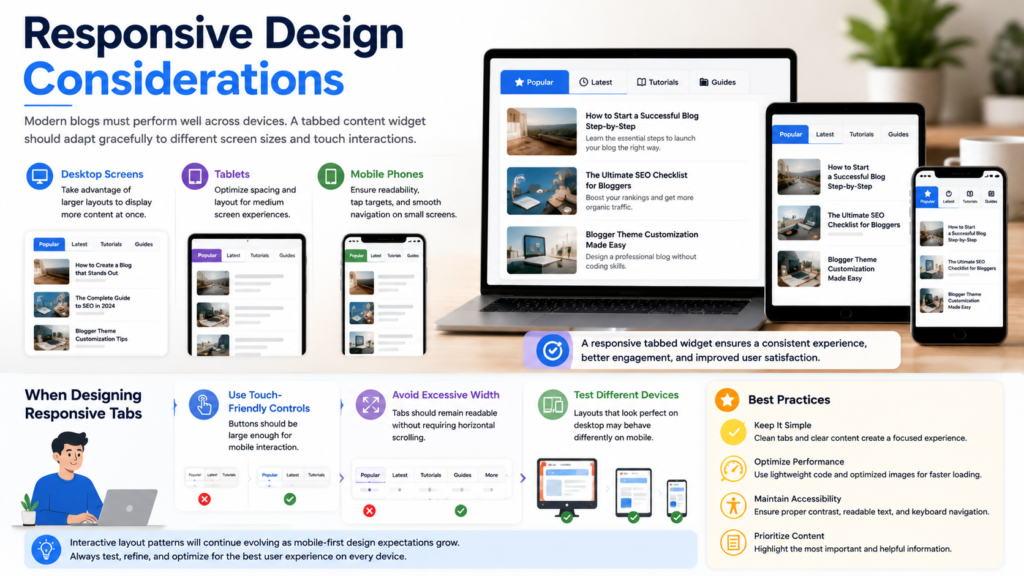
Modern blogs must perform well across devices.
A tabbed content widget should adapt gracefully to:
- Desktop screens
- Tablets
- Mobile phones
When designing responsive tabs:
Use Touch-Friendly Controls
Buttons should be large enough for mobile interaction.
Avoid Excessive Width
Tabs should remain readable on smaller screens.
Test Different Devices
Layouts that look perfect on desktop may behave differently on mobile.
Interactive layout patterns will continue evolving as mobile-first design expectations grow.
Customization Ideas
Once the basic widget is working, consider adding enhancements.
Featured Thumbnails
Visual previews can increase engagement.
Post Counts
Display the number of articles available in each section.
Icons
Simple icons can improve visual clarity.
Category Labels
Show content groups alongside article titles.
Highlighted Articles
Feature important content within selected tabs.
These improvements can help create a more polished user experience.
Common Mistakes
Too Many Tabs
More tabs do not necessarily improve usability.
Keep navigation focused.
Inconsistent Content
Tabs should contain related information.
Mixing unrelated content can confuse readers.
Ignoring Mobile Users
Always test responsive behavior before publishing.
Overcomplicated Styling
Excessive effects may distract from the content itself.
Poor Content Hierarchy
The most valuable information should be easiest to access.
Building a Better Content Experience
Tabbed widgets work best when combined with a broader navigation strategy.
Consider pairing them with:
- Related post sections
- Category hubs
- Featured content blocks
- Resource pages
For additional inspiration, explore our collection of blog widget tutorials, discover other useful blog layout widgets, and learn more about blog design customization techniques that improve both usability and presentation.
Frequently Asked Questions
Are tabbed widgets still useful?
Yes. They remain an effective way to organize content while conserving screen space.
Do tabbed widgets improve navigation?
They can improve navigation when content is grouped logically and presented clearly.
Are tabbed layouts mobile-friendly?
Modern implementations can be highly responsive when designed with mobile users in mind.
How many tabs should a widget contain?
Most interfaces work best with three to five tabs.
Can tabbed widgets help content discovery?
Yes. They make it easier for readers to explore related content without leaving the current page.
Final Thoughts
A tabbed content widget is one of the most practical layout enhancements available for Blogger users.
By organizing information into manageable sections, tabs create a cleaner interface, improve content visibility, and help readers navigate growing content libraries more effectively.
As blogs continue evolving into richer publishing platforms, interactive layouts will remain important for balancing usability, organization, and visual appeal. Whether you’re improving a sidebar, creating a resource hub, or redesigning a homepage section, tabbed content remains a valuable tool for modern blog design.